
Table of Contents
5 Best Cold Email Software Options for B2B Teams

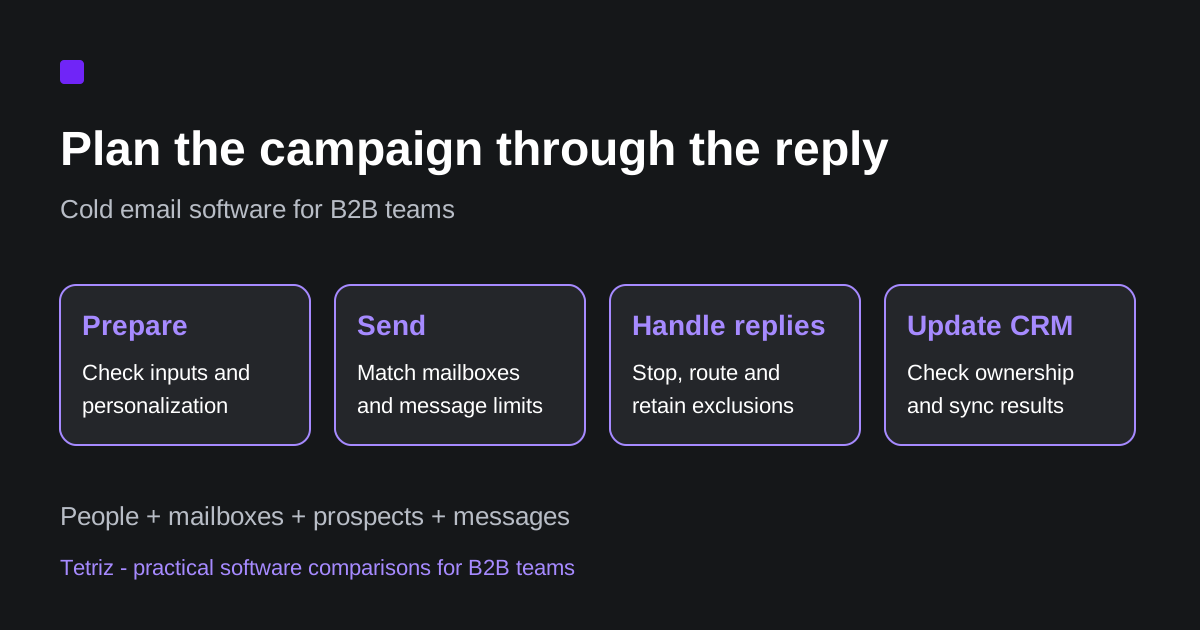
The best cold email software should make a campaign understandable from the first draft through the last reply. Start by writing down who owns the message, which mailboxes send it, what stops the follow-ups and where a useful reply goes. A large monthly sending allowance does not answer those questions.
This comparison covers lemlist, Instantly, Woodpecker, Smartlead and Mailshake. They offer different ways to budget for email execution, from sending volume and contact storage to user and address allowances. Start with lemlist when the documented volume-based Email plan fits a shared team, Instantly when the selected tier supports your mailbox and reply operation, or Woodpecker when email-volume billing and shared team access fit the campaign. Compare Smartlead’s capacity and client controls for agency work, and Mailshake’s paid-user allowances when access and connected addresses drive the bill. Our recommendations follow documented workflow fit rather than a measured deliverability ranking.
The research uses official pricing and help sources reviewed on 22-29 October 2026. No shared sending test, customer-contact upload or inbox-placement benchmark was performed. Prices are reference configurations and need to be checked against the exact billing term and product module.
Compare cold email software by operating requirement
Tables scroll horizontally on smaller screens.
| Tool | Useful requirement to evaluate | Main plan check |
|---|---|---|
| lemlist | Email sequences with an option to add other outreach channels | Volume-based Email versus per-user Multichannel |
| Instantly | Several sending accounts managed within an email operation | Uploaded contact cap, sending cap and separate product modules |
| Woodpecker | Sent-email volume with unlimited contact storage | Count follow-ups in the email cap and price integrations separately |
| Smartlead | Sending capacity with explicit contact storage and service allowances | Sending subscription versus verification and other add-ons |
| Mailshake | Address allowances and an upgrade path toward calling | Billing unit, connected addresses and tier-specific features |
Keep the initial requirement concrete. A founder sending one targeted sequence, a team sharing replies and an agency managing separate clients can need different account structures. Those differences affect permissions and cost before they affect the email editor.
lemlist: distinguish the new Email plan from Multichannel
lemlist’s new-customer plan guide makes a useful distinction. The Email plan scales by monthly email volume and includes unlimited users and sending addresses. The entry volume is 50,000 emails for $69 on monthly billing. The allowance counts campaign messages, inbox sends and contact-panel sends together, so budget for the whole team’s activity. The documented annual equivalent is $55 per month.
Multichannel is a separate per-user purchase. The monthly reference is $109 per user, with LinkedIn and calling capabilities alongside email. The current pricing page also identifies separate enrichment and channel-service allowances.
Choose the channels before multiplying a price by headcount. The new Email plan should not be priced as though it were the older Email Pro seat subscription. Existing customers can have legacy terms, so identify which plan the comparison concerns.
lemlist’s reply-automation guide documents Continue, Pause lead and End lead choices after a reply. Pause preserves the option to resume; End stops that campaign flow for the lead. Check the selected behavior and whether the campaign actually detected the reply before treating an automatic follow-up as a copywriting problem.
Consider lemlist when the team needs email execution with a clear path to a coordinated multichannel workflow. Check carefully which plan covers the required senders, users and channels, and which data or messaging services consume another allowance.
Instantly: separate sending capacity from the rest of the stack
The actual monthly Outreach cards on Instantly’s pricing page showed Growth at $47 per month. That configuration listed 1,000 uploaded contacts and 5,000 emails per month, alongside unlimited connected email accounts. Unlimited account connections do not mean unlimited stored contacts or sent messages.
The same monthly view showed Hypergrowth at $97 with 25,000 uploaded contacts. Its current plan overview specifies 125,000 monthly emails for Hypergrowth. A different quantity appeared in the marketing comparison grid, so confirm the selected billing configuration before relying on the higher allowance.
The Outbound plan comparison reserves team invitations, workspaces and replying from Unibox for Hypergrowth and above. Growth can preview Unibox but does not include the same reply operation. For a team that needs shared reply access, the $47 sending price is therefore the wrong starting configuration.
The uploaded-contact limit applies across campaigns and does not refresh as a new monthly contact-credit allowance. Check stored contacts as well as this month’s new prospects.
The site also separates Outreach from credit-based data and other products. Buying an email-sending plan should not be assumed to buy every database, AI or CRM function advertised elsewhere on the site.
Its stop-on-reply troubleshooting guide says the reply stop setting is enabled by default, but enabling it later does not retroactively stop leads who replied earlier. Check the activity timeline and those earlier replies during a campaign change.
Instantly also distinguishes two blocklist paths. The workspace Blocklist tab is checked on upload and during existing campaigns. The Google Sheets blocklist is checked when importing or uploading and does not stop already loaded campaign leads. That distinction matters when an exclusion arrives after launch.
Consider Instantly when managing several sending accounts is central to the email operation. Check carefully contact storage, sending limits, reply access and the separate modules needed for the full workflow.
Woodpecker: count sent emails, including follow-ups
Woodpecker’s current billing reference defines the primary allowance as emails sent per month. Every sent email counts, including follow-ups; manual tasks and LinkedIn actions do not consume that email allowance. The limit resets at each monthly billing cycle, and unused email capacity does not carry forward. Count the whole sequence rather than equating one prospect with one billable email.
With USD and monthly billing selected, the public calculator showed the Email plan at $39 per month for 5,000 sent emails. That configuration included unlimited contact storage, team members and connected email accounts. The integrations/API package and agency functions remain separate buying checks. These are the current sent-email terms; do not apply an older contacted-prospect price to a new subscription.
The prospect-status guide distinguishes campaign and global statuses. A reply stops follow-ups in that campaign, and the same prospect in another running campaign is paused there. BLACKLISTED is a global exclusion, while OPT-OUT also carries into a newly added campaign unless manually changed. Do not treat pausing one campaign as the same operation as a persistent exclusion.
Consider Woodpecker when email-volume billing and unlimited team access fit the campaign operation. Check carefully the messages sent across all campaign steps and the add-ons needed to move replies and records into the rest of the stack.
Smartlead: read the subscription and add-on together
The monthly cards on Smartlead’s pricing page showed Base at $39 with 2,000 contacts and 6,000 email sends. Pro showed $94 with 30,000 contacts and 90,000 sends. These are sending subscriptions with different capacity limits.
The same page presents verification as a separate $59 add-on on those two tiers. A verification allowance shown beside a plan should not be read as included in the base sending price when the page labels it an add-on.
Compare the complete configuration rather than choosing the largest number beside a slider. Client workspaces, integrations, verification and infrastructure can be separate parts of the operating decision.
Smartlead’s campaign-settings API documentation exposes a stop condition that can be a reply, open, click or NEVER. Its Global Block List guide adds a crucial agency qualification. An entry without an assigned client blocks unassigned campaigns, not every client sub-account. To exclude an address across multiple clients, the guide requires a separate entry for each client. Confirm the client assignment as well as the email or domain being excluded.
Consider Smartlead when explicit contact storage and sending capacity are useful for planning the email operation. Check carefully the required service tiers and add-ons before treating a sending subscription as the whole bill.
Mailshake: address allowances change by tier
Mailshake’s pricing page lists Starter at $29 on monthly billing, with one email address and 1,500 email sends. The monthly Email Outreach reference is $49 with two addresses and an unlimited listed sending allowance. Sales Engagement is listed at $99 monthly with calling features. Its address entitlement needs confirmation: the marketing page listed ten, while the billing help guide says up to five connected mail accounts per user on that tier.
The feature list puts a unified inbox and CRM integrations on Email Outreach and above. A low entry price should therefore be compared with the tier that covers the team’s actual reply and integration requirements.
The billing guide explains that paid users determine both teammate access and connected-mail-account capacity. Starter includes one connected account per user and Email Outreach includes two. Buying another address allowance can therefore require another paid user even when the team does not need another person to log in. Confirm the actual checkout’s user rate and allowance together. A software plan’s unlimited sending label also does not establish that an email provider will accept unlimited daily activity.
Mailshake’s Lead Catcher settings guide says replies qualify a prospect as a lead by default. Becoming a lead stops the campaign’s follow-up and on-click messages, and the same prospect cannot be returned to that campaign as an active prospect. Review custom capture conditions before assuming every campaign uses the default.
Its unsubscribe guide documents recognized reply phrases and an exclusion list that also skips future campaign imports. The guide says unsubscribe links do not work in TEST emails, so a test preview alone does not verify that behavior.
Consider Mailshake when the required address allowances and calling workflow fit the listed tiers. Check carefully which people need paid access, how many addresses they can use and which tier supplies the required CRM workflow.
Estimate messages and costs using the same scenario
Suppose a team plans to contact 1,000 new prospects with one initial email and up to two follow-ups. The theoretical maximum is 3,000 campaign messages before replies, exclusions or other stop conditions reduce the total. That is an illustrative workload, not a recommendation to use every available sending allowance.
It creates several different quantities:
- 1,000 new prospects in one campaign.
- Up to 3,000 sent messages.
- The number of connected mailboxes.
- The number of people writing, reviewing and answering.
- The contact storage needed while earlier campaigns remain in the workspace.
A plan can cover one quantity while limiting another. For example, adding an email account does not necessarily increase the contact cap. Running another Woodpecker sequence adds any emails it actually sends to the monthly email total.
Record each part of the bill under the same currency and billing term:
- Sending subscription and required seats.
- Mailbox and domain purchases or renewals.
- Data finding, enrichment and verification.
- CRM or integration access.
- AI usage and other metered services.
- Agency or client workspace charges, if needed.
This worksheet describes costs to investigate. Use the same 1,000-prospect, up-to-3,000-message workload to check a concrete team configuration: three people and four sending mailboxes. Under Mailshake’s documented Email Outreach allowance of two mailboxes per user, three paid users cover the people and provide capacity for up to six mailboxes. Applying the checked $49 monthly rate gives an illustrative sending-subscription total of $147 per month. That calculation excludes domains, mailboxes and any separately purchased services, and depends on the current checkout retaining those terms.
For comparison, lemlist’s documented $69 monthly Email entry configuration includes unlimited users and sending addresses, with a 50,000-message allowance. Those capacity figures cover this example’s users, mailboxes and theoretical message count, while the CRM, reply workflow and other purchased services still need checking. Woodpecker’s selected $39 monthly Email configuration also covers those stated counts with its 5,000-email allowance and unlimited team members and email-account connections, before required add-ons and external services. Instantly requires the higher operating tier if the three people need team invitations and Unibox replying, even though Growth’s message allowance could cover 3,000 emails.
These examples show why the displayed starter price cannot rank the whole workflow. They are arithmetic from documented package rules, not quotes for a tested customer account.
Check the CRM handoff beyond the integration logo
Write down the event that should create or update a CRM record, the fields that should change and the person who should own the next action. A working connection alone does not establish those outcomes.
lemlist’s HubSpot setup guide separates record creation triggers, field sync direction, user mapping and activity logging. Its documented V1 field mapping is not retroactive, so configure it before import or launch. The troubleshooting guide also says adding a lead to the unsubscribe section does not currently push that event to CRMs. Check the separate exclusion handoff instead of assuming every local status becomes a CRM property.
Instantly documents HubSpot integration inside Automations, including reply/status triggers and contact, task and note actions. That guide starts from the Agents workflow. Identify that exact product configuration and its entitlement or usage cost rather than treating the base sending subscription as proof that the required CRM automation is included.
Woodpecker’s native HubSpot guide requires its API Key and Integrations add-on. It describes historical contact sync, record filters and conflict resolution; its default conflict rule gives HubSpot priority. Deleting a Woodpecker prospect does not automatically delete the HubSpot record. That is a materially different operation from removing someone from an active campaign.
Smartlead documents more than one route. Its native HubSpot FAQ says campaign-level integration is enabled during creation/import and cannot be added midway to an active campaign through that path. The SmartAgents guide describes a separate trigger-based find/create/update workflow and requires SmartAgents access. Confirm which route and allowance the quote covers.
Mailshake’s HubSpot guide distinguishes importing contacts from enabling campaign activity sync. It lets the operator create missing records or update existing ones only, choose the owner and select one-time versus continuing imports. Existing campaigns sync forward after integration is enabled, without retroactive campaign activity. Its documented import mapping cannot be changed after that import is created, so check fields before committing to the workflow.
For a buyer check, use an existing CRM record and a proposed positive-reply event. Record the expected contact identifier, changed status, assigned owner, exclusion state and logged activity. Inspect the actual resulting record and the integration’s error or execution log in an authorized workspace. These are documented capabilities and a proposed evaluation procedure; no CRM was connected or modified for this comparison.
Evaluate replies and exceptions before moving a campaign
A useful evaluation follows a small permitted workflow from drafting to a final record update. Write down what should happen when a person replies, unsubscribes, has an out-of-office response or appears twice in the input. Then check whether the chosen product and integration implement that policy.
| Tool | Documented operating detail | Check in the actual workspace |
|---|---|---|
| lemlist | Reply action can continue, pause or end | Selected automation and detected reply |
| Instantly | Turning reply-stop back on is not retroactive | Earlier replies and the blocklist source |
| Woodpecker | Campaign status differs from global exclusion | Other campaigns and persistent OPT-OUT/BLACKLISTED status |
| Smartlead | Global blocklist entries have client scope | Separate exclusion for each intended client |
| Mailshake | Lead Catcher stops follow-ups after qualification | Custom lead rules and future-import exclusion |
These documented rules are more useful than assuming every tool has an identical stop-on-reply switch. They do not prove that your mailbox connection, integration or import will implement the intended policy without a workspace check.
Use the following procedure when evaluating an authorized workspace:
- Prepare the same small representative input for each candidate.
- Preview missing fields and fallback text before scheduling.
- Confirm the sending identity and schedule.
- Check which event stops a sequence.
- Verify that suppression remains effective across later imports.
- Route a reply to its owner and inspect the CRM handoff.
- Record actual charges and any unresolved failures.
This is a proposed buyer procedure, not a test run for this comparison. Measure the actual result after introducing a workflow. Warm-up, rotation or verification features alone do not establish that one vendor will produce more qualified replies for your audience.
Choose the next comparison by the missing capability
Use our Apollo alternatives guide if the decision also involves buying prospect data or replacing a wider sales workspace. Use the email verification comparison when the unresolved question is which addresses should enter the campaign. For more product context, read the lemlist review and Woodpecker review. Keep the email-execution purchase tied to who sends, who answers and what happens to the next follow-up.
Frequently asked questions
Which cold email software is cheapest for a team?
Price the required people, mailboxes, stored contacts and messages together. A per-user product can cost more than its displayed starter price when several people need access, while a volume plan can include more capacity than the team needs. Use the same billing term and workload before comparing the subscription and external services.
Does unlimited sending mean I can send unlimited emails each day?
No. A software allowance does not remove the email provider’s sending restrictions or define an appropriate daily campaign volume. Check the purchased platform limits, mailbox provider limits, scheduling and actual campaign behavior separately. This comparison does not turn a large allowance into a sending recommendation.
Will every reply automatically stop a sequence?
The documented behavior depends on the product, campaign settings and whether the reply was detected. Some tools expose a choice to continue, pause or end; others use a lead-capture condition. Check previously received replies when changing a setting, and distinguish a temporary pause from an exclusion that should survive future imports.
Does a verification or warm-up feature prove better deliverability?
No. These are capabilities to evaluate alongside the sending workflow. This article did not run an inbox-placement or reply-rate experiment and does not rank vendors by an unmeasured outcome. Keep data quality, address verification, sender conditions and campaign execution separate when investigating results.